Submit a Flex Plan
Instructor Quick Guide
When to use this: Complete a flex plan when you receive notice that a student has a Flexible Attendance or Flexible Deadline accommodation (formally Modified Attendance and Extensions on Assignments).
Steps to Submit A Flex Plan:
- Log in to the Instructor Portal on the SAAS website.
- Select Flex Plan from the dashboard.
- Locate the student/course in the Flex Plan table.
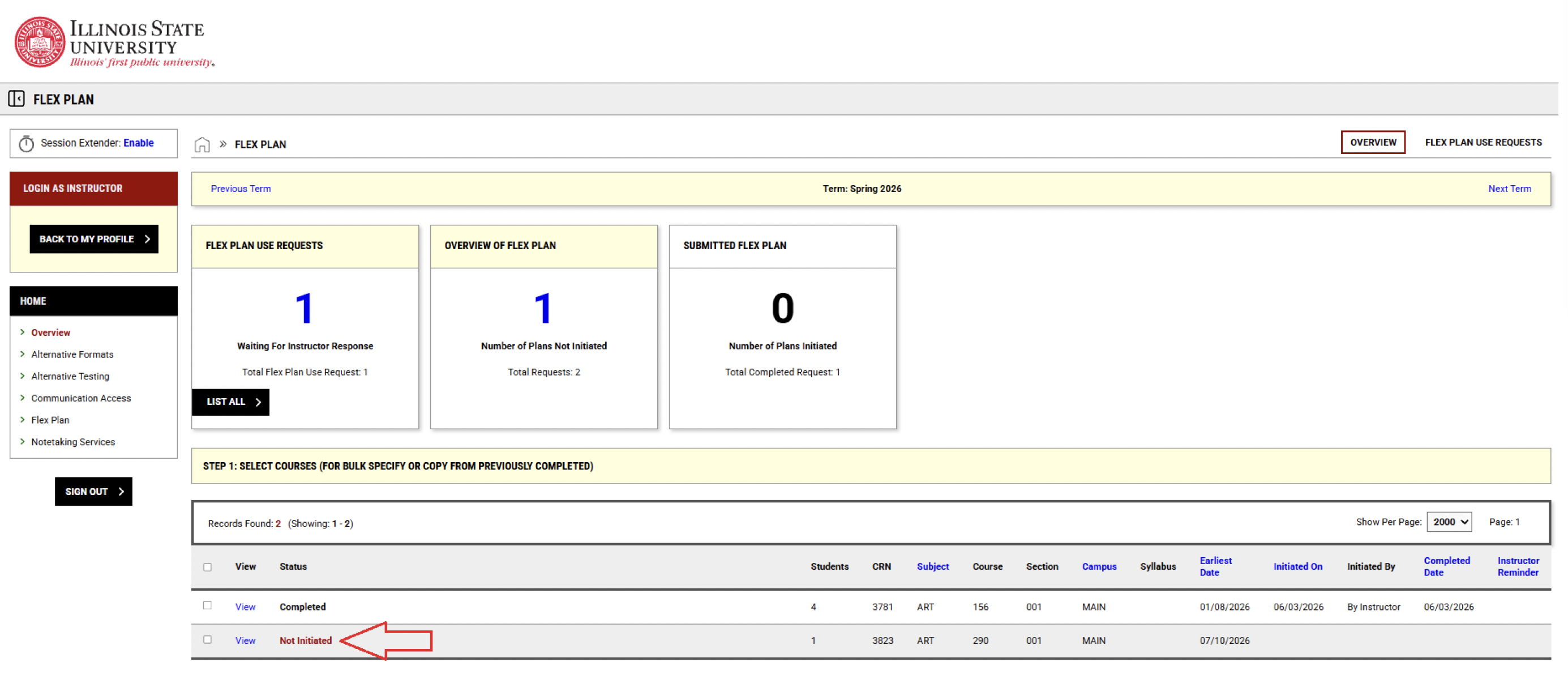
- If the status says Not Initiated, select View.
- Review the default responses and update them as needed for your course requirements.
- Check the box confirming you read and understand the agreement.
- Optional: Apply the same plan to other sections of the same course.
- Select Initiate and Request Review.
After you submit: SAAS reviews the Flex Plan. You and the student will be notified once it is approved.
Respond to a Flex Plan Use Request
When a student needs to use their Flexible Accommodation, they will submit a Flex Plan Use Request.
- Student submits the request through their SAAS Student Portal.
- You will receive an email prompting you to log in to the Instructor Portal.
- Go to Flex Plan > Flex Plan Use Requests and select the number of pending requests.
- Select View, then choose to Accept or submit Concern/Feedback from the dropdown.
Note: If Concern/Feedback is submitted, the SAAS coordinator is notified and will follow up if needed. If you do not receive communication back, the accommodation has been rejected for the student, and you may mark attendance or assignments as needed.
View Request History / Need Help
-
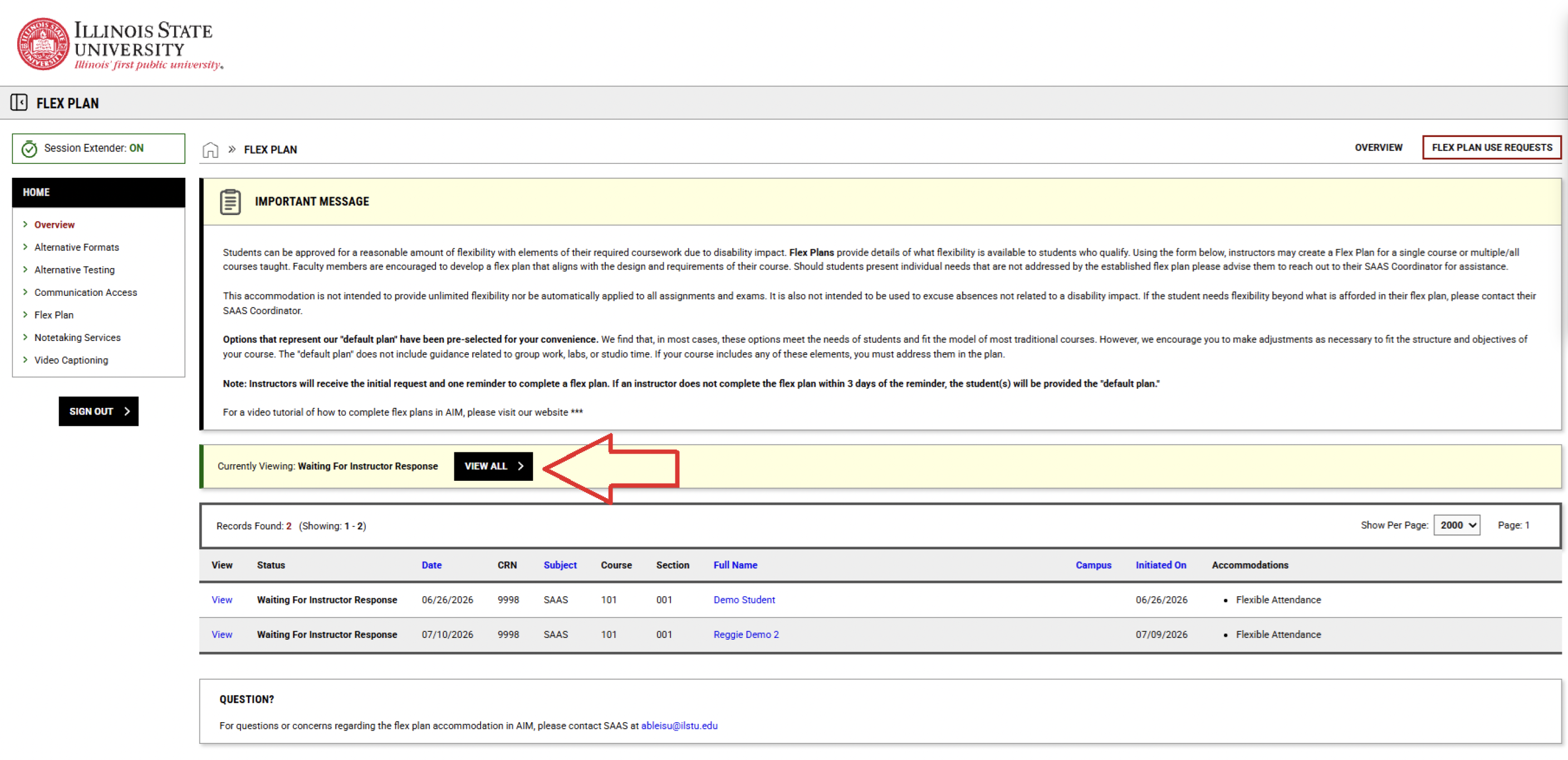
View history: Select Flex Plan Use Requests at the top of the page or from the Flex Plan Use Requests section to view all Use Requests
-
Need help? Contact SAAS with questions or for assistance completing a Flex Plan.
For more detailed guidance, please refer to screenshots below.
Submit a Flex Plan (For Instructors)
Instructors can submit a Flex Plan for students with flexibility accommodations.
This includes Flexible Attendance and Flexible Deadlines (formerly Modified Attendance and Extensions on Assignments).
If a student in your course has one of these accommodations, you’ll receive an email prompting you to begin a Flex Plan. Log into the Instructor Portal on the SAAS website to get started.
From your dashboard, select Flex Plan.
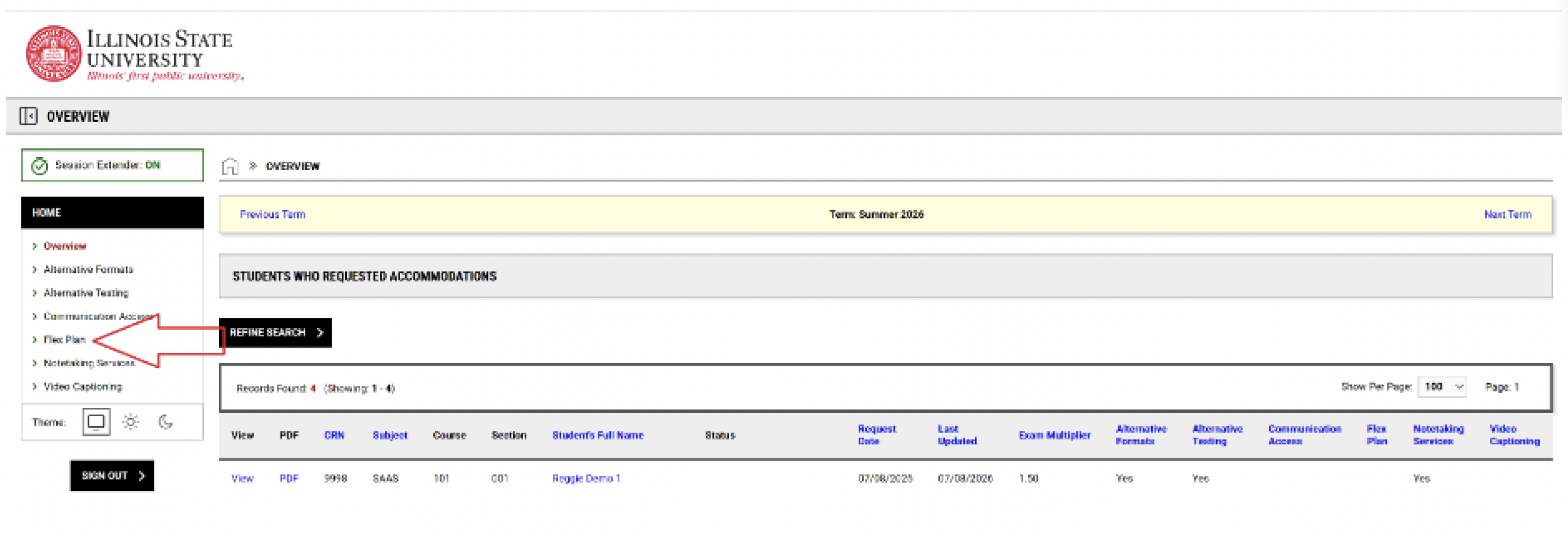
A table displays all Flex Plans for your courses, including course details and the status of each plan.
If a plan shows the Status of Not Initiated, select View to begin.
SAAS provides default responses for each question in the Flex Plan. You may keep these or adjust them to fit your course. Be sure your responses reflect your course structure and requirements.
Once complete, check the box to confirm that you’ve reviewed the agreement. You may also apply the same plan to other sections of the course, if applicable.
Select Initiate and Request Review to submit your plan.
SAAS will review your submission, and both you and the student will be notified when it is approved.
If you need assistance at any point, please contact SAAS.
Managing Flex Plan Use Requests
When a student needs to use their flexibility accommodation, they will submit a request through their SAAS portal. You’ll receive an email directing you back to the Instructor Portal.
On the Flex Plan page, go to the Flex Plan Use Requests section. Select the number listed to view pending requests.
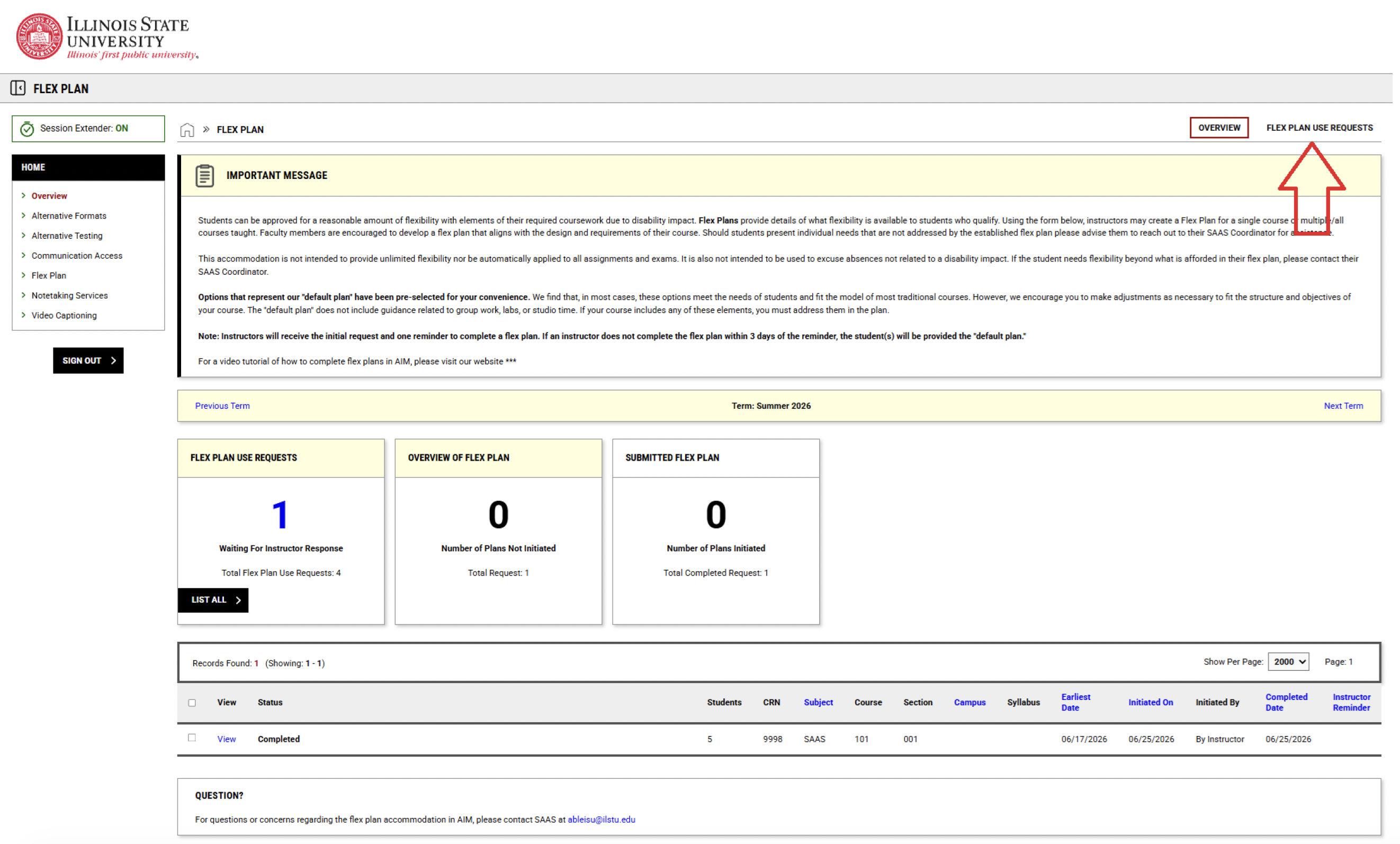
Choose View to respond. You can approve the request or submit feedback or a concern.
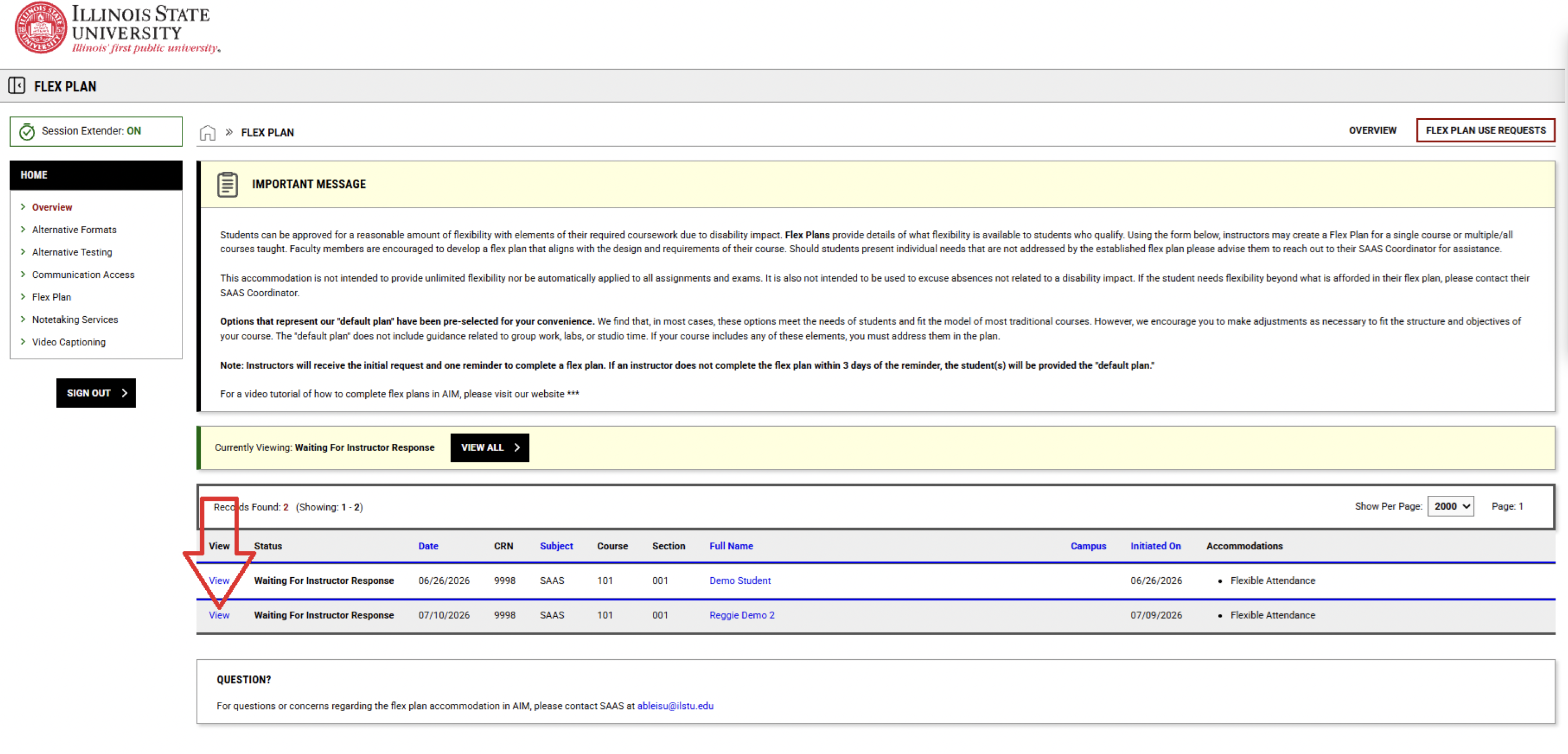
If you submit feedback, the SAAS coordinator will follow up as needed. If no follow-up occurs, the request has not been approved.
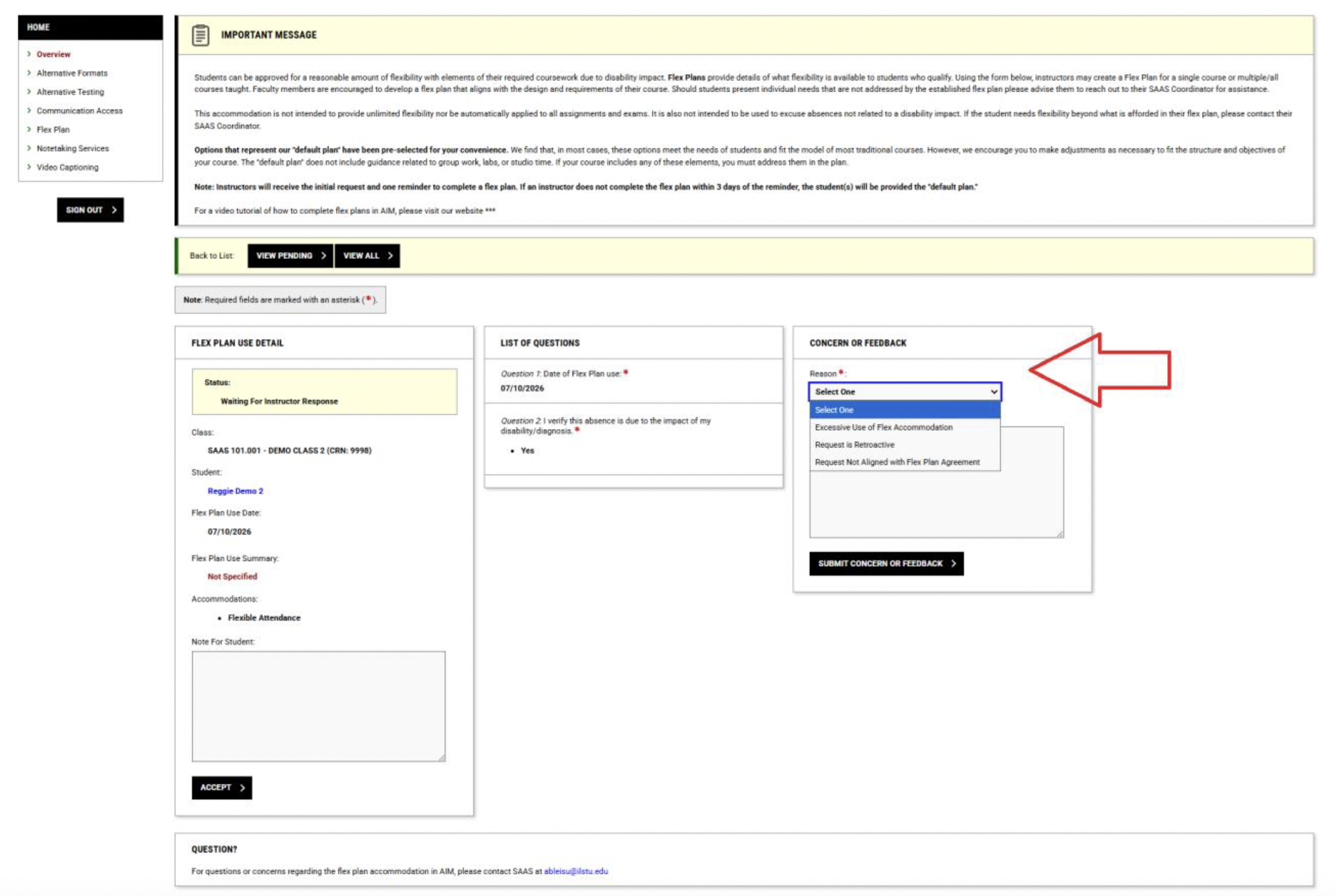
You can view all past requests by selecting Flex Plan Use Requests at the top of the page and selecting View All.